
Worksheet 2 AWS EC2

 AWS EC2

  • Amazon EC2 provides the broadest and deepest instance choice to match your workload’s needs. 
  • General purpose, compute optimized, memory optimized, storage optimized, and accelerated computing instance types are available that provide the optimal compute, memory, storage, and networking balance for your workloads. 
  • Processors from Intel, AMD, NVIDIA and AWS power these instance types and provide additional performance and cost optimizations. 
  • Local storage and enhanced networking options available with instance types further help optimize performance for workloads that are disk or network I/O bound. 
  • Many instance types also offer bare metal instances that provide your applications with direct access to the processor and memory of the underlying server for running in non-virtualized environments or for applications where you want to use your own hypervisor. 

Features

Functionality – EC2 provides its users a true virtual computing platform, where they can use various operations and even launch another EC2 instance from this virtually created environment. This will increase the security of the virtual devices. Not only creating but also EC2 allows us to customize our environment as per our requirements, at any point of time during the life span of the virtual machine. Amazon EC2 itself comes with a set of default AMI(Amazon Machine Image) options supporting various operating systems along with some pre-configured resources like RAM, ROM, storage, etc. Besides these AMI options, we can also create an AMI curated with the combination of default and user-defined configurations. And for future purposes, we can store this user-defined AMI, so that next time, the user won’t have to re-configure a new AMI from scratch. Rather than this whole process, the user can simply use the older reference while creating a new EC2 machine.

Operating Systems – Amazon EC2 includes a wide range of operating systems to choose from while selecting your AMI. Not only these selected options, but users are also even given the privileges to upload their own operating systems and opt for that while selecting AMI during launching an EC2 instance. Currently, AWS has the following most preferred set of operating systems available on the EC2 console.
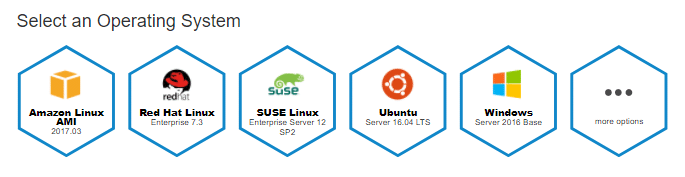
  • Amazon Linux
  • Windows Server
  • Ubuntu Server
  • SUSE Linux
  • Red Hat Linux

Software – Amazon is single-handedly ruling the cloud computing market, because of the variety of options available on EC2 for its users. It allows its users to choose from various software present to run on their EC2 machines. This whole service is allocated to AWS Marketplace on the AWS platform. Numerous software like SAP, LAMP and Drupal, etc are available on AWS to use.

Scalability and Reliability – EC2 provides us the facility to scale up or scale down as per the needs. All dynamic scenarios can be easily tackled by EC2 with the help of this feature. And because of the flexibility of volumes and snapshots, it is highly reliable for its users. Due to the scalable nature of the machine, many organizations like Flipkart, Amazon rely on these days whenever humongous traffic occurs on their portals.

Comments

Popular posts from this blog

Lab AWS Exercise 1 A : Creating a EC2 instance accesible via remote client in AWS

 Creating a EC2 instance accesible via remote client in AWS Step 1:Create an instance Step 2:Launch Instance Step 3:Create new key pair and download private key in PEM format. Step 4:Launching Instance Step 5:Successfully initiated launch of instance Step 6:Instance starts running successfully. Step 7:Open Putty key generator Step 8:Load the PEM file Step 9:Save Private Key as PPK file Step 10:Open WinSCP Step 11:Copy the Public IPV4 Address of the instance Step 12:Paste the IP address in Host name Step 13:For Password open Advanced Site Settings and click authentication Step 14:Upload the private key in PPK format Step 15:Save the Site Step 16:Login the site Step 17:EC2 instance accessible via remote client in AWS is created

Lab AWS Exercise 6 - Create S3 bucket and host a static website

Sign in to AWS management console Select Amazon S3  Select Buckets Click on create bucket Fill in the information Enable ACL Enable public access Create bucket Bucket created successfully Upload the HTML file need to be hosted under objects of the created bucket The object URL must move you to the webpage that you have uploaded The webpage has been hosted successfully

Worksheet 2 AWS Services

  AWS SERVICES Amazon Lightsail Amazon Lightsail provides easy-to-use cloud resources to get your web application or websites up and running in just a few clicks. Lightsail offers simplified services such as instances, containers, databases, storage, and more. With Lightsail, you can easily spin up websites or applications using pre-configured blueprints like WordPress, Prestashop, or LAMP. You can use Lightsail features to simply host static content, connect your content to an audience around the globe, or get your Windows Business server up and running. The Lightsail console guides you through the configuration process, and in many cases, has components already configured. Features Lightsail offers virtual servers (instances) that are easy to set up and backed by the power and reliability of AWS. You can launch your website, web application, or project in minutes, and manage your instance from the intuitive Lightsail console or API. Lightsail offers an easy way to run containers ...

Lab AWS Exercise 7 - Create an SQL instance

 Download and install MySQL workbench Open AWS management console Select RDS under database under services Click on create database Choose database creation method Choose engine Choose free tier Provide Database name , username , password Create database Database created successfully Open MySQL workbench Under database , select manage connection Enter the endpoint of the database in place of host and enter the right username  And then test connection Open the connected database and execute the queries provided or needed

Lab AWS Exercise 1 - Creation of EC2 instance in AWS

  EC2 INSTANCE CREATION Create AWS free tier account You will be asked for billing details fill and sign up Complete your registration Sign in to the console Launch EC2 instance from AWS dashboard Choose ami Choose instance type Configure instance Add storage Add tags Configure security group Review     The instance starts running Then finally terminate the instance

Lab AWS Exercise 4 - Creation of VPC

Open AWS console Under services select networking and content delivery Under that select VPC Click on create VPC Provide vpc a name and provide required information and select create vpc Creation of subnets Under vpc select subnet and click on create subnet Provide vpc information Create 4 subnets : 1 public and 3 private subnets

Assignment Class Activity - Storage Virtualization

What is storage visualization ? Storage  virtualization in Cloud Computing  is nothing but the sharing of physical storage into multiple storage devices which further appears to be a single storage device. It can be also called as a group of an available storage device which simply manages from a central console. This virtualization provides numerous benefits such as easy backup, achieving, and recovery of the data. Benefits of storage virtualization It is highly scalable. It allows easy addition and deletion of storage without affecting any application. Easy data migration. Easy storage management. Diagram of Storage virtualization Types of storage virtualization Block level File level Block level storage virtualization  is implemented in “ SAN (storage area network) ” and it provides a translation layer in the SAN, between the hosts and the storage arrays. In this type of storage virtualization, servers are redirected to virtualized LUNs instead of LUN’s on the individu...